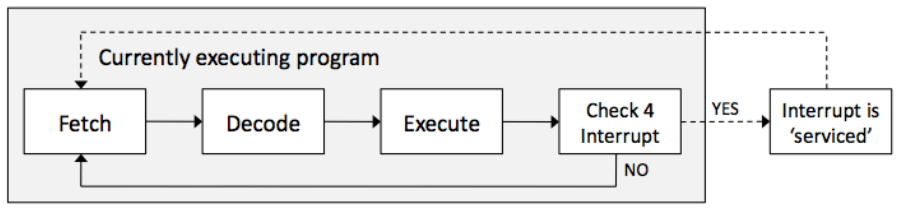
Interrupts are a way of breaking the “Fetch, Decode, Execute” cycle. This is needed to break the cpu out of a cycle if it isn’t responding. For example interrupting With Ctrl, Alt Delete. Each interrupt has a priority level. These determine how important they are and what they will interrupt. depending on what the problem is will depend on how important it is. Some interrupts are for conditions that need immediate attention (e.g. hard disk failure) and others are for conditions that may be ignored for a while (e.g. printer running out of paper). It is, therefore, necessary to assign a priority to each type of interrupt so that when two or more interrupts occur at the same time, the processor can compare interrupt priorities to determine which one to process first.
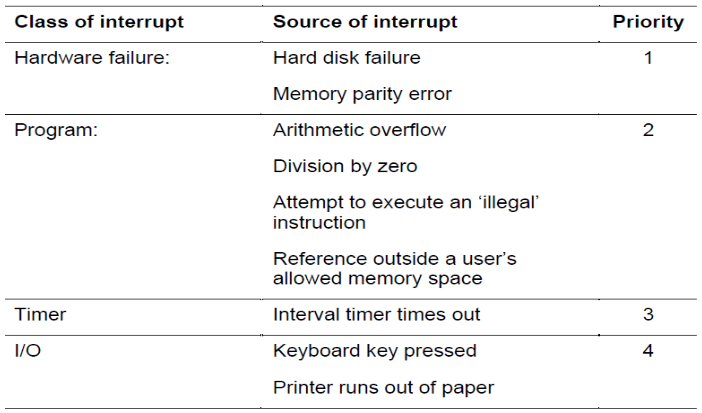
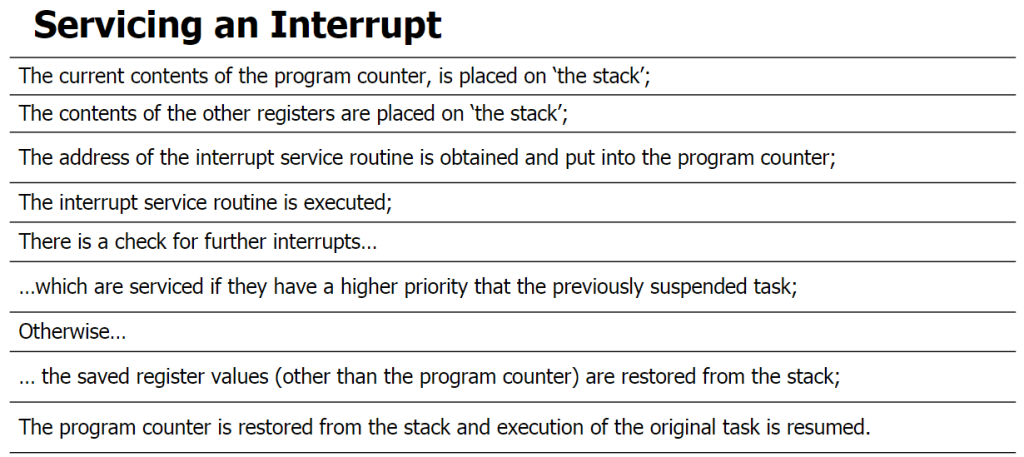
Interrupt Handling – Each different type of interrupt is associated with a specific Interrupt Service Routine (ISR), also called an interrupt handler – these are the routines that are executed when an interrupt occurs. For example, when you press a key on your keyboard, this triggers the keyboard interrupt handler. This handler will execute, perform its action and then pass back control of the processor to the program that was executing before the interrupt occurred. The complete list of interrupts and their interrupt handlers is stored in a table called the interrupt vector table, which is stored in the first 1 Kbyte of addressable memory.
Buffers – A buffer is a small block of memory inside hardware devices such as printers, keyboards and hard drives where work currently being handled by that device is stored. When a keyboard key is pressed, for example, an interrupt is sent to the CPU and the key stroke stored in the keyboard’s buffer. However, sometimes the OS may not be ready to deal with the keyboard stroke and more keys may have been pressed. Instead of losing the key strokes, the buffer stores the values until the OS is ready. If that buffer overflows, the motherboard warns the user by sounding a beep. Hard drives also contain a buffer; by utilising a buffer the CPU can send a block of data to be saved without having to wait for the data to be physically stored onto the disk. This increases system performance by allowing the CPU to work on other tasks. When data is stored on or loaded from any device, buffers will be used.
Scheduling
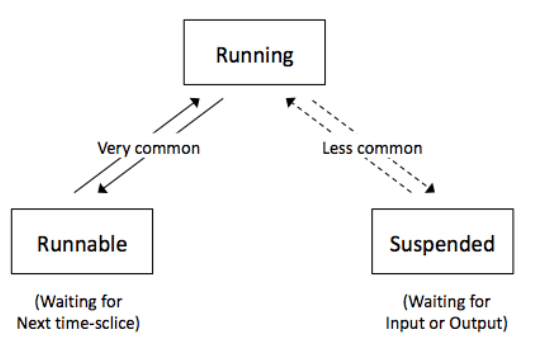
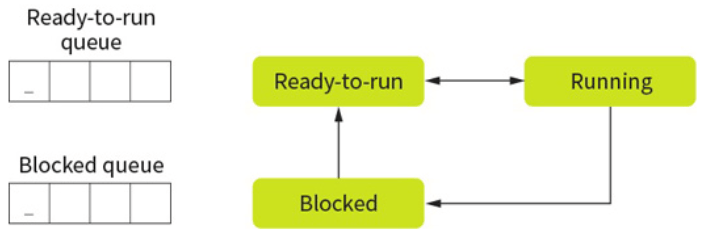
Scheduling is how the OS allocates CPU time amongst different processes. It can swap this very quickly giving the illusion of multitasking. Different operating systems have different methods of scheduling these tasks however this is kept somewhat secret from the public. Scheduling must not be confused with interrupts, which are hardware signals sent to the CPU to inform it that an event, external to the CPU or generated by software, has occurred. Only one process can be run at once on a single CPU core. This process will be in the ‘running state’ or just ‘running’. Other processes will be either in a ‘ready-to-run queue’, waiting for their turn with the CPU, or in a blocked state.
Scheduling Algorithms:
First Come First Served (FCFS) This is the simplest algorithm, but it is generally inefficient in terms of maximising the use of the system’s resources. This algorithm adds new jobs to the end of the queue and selects the next job from the front of the queue. The main problem with this is all programs must wait until all before it have finished. this causes problems when lots of small tasks get stuck behind one long task.
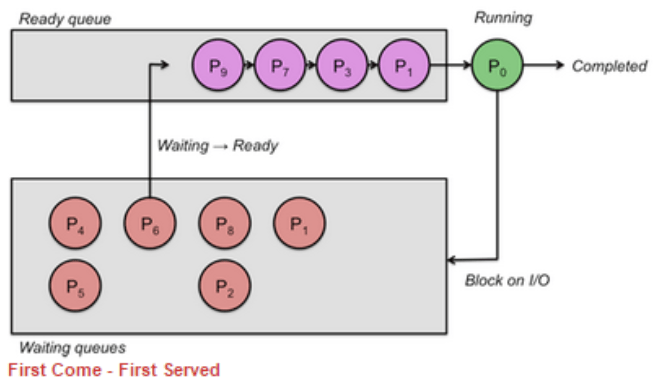
Round Robin (RR) all tasks are given the same amount of time in the CPU before moving on to the next. This is the “fairest” way of doing things however longer processes will take several rounds to complete making this somewhat inefficient

Shortest Job First (SJF) NOT Shortest Remaining Time (SRT)
This is the most efficient in terms of average turn-around time. When a new job is submitted, it is placed in the ready queue according to how long it will take to process – the shortest jobs will be at the front of the queue, with the longest at the back.
Note that the algorithm will have to have a system to estimate the processing time required, the OS estimated this time through analysing historic data.
This will lead tp
Shortest Remaining Time (SRT)
Shortest remaining time (SRT) is very similar to SJF, with the biggest difference being that when a process is interrupted or pre-empted, the time remaining on that process is looked at and then the process is added ahead of any other processes that have longer time left to run. This prevents longer processes suffering from starvation.
As time progresses, processes that require a lot of CPU time will slowly get a chance to run and the time they require will reduce. This, in turn, increases their priority and increases their chances of running, thus reducing the risk of starvation.
Swapping becomes more expensive, however, as all processes (not only new ones) must be placed correctly in the ready-to-run queue and new burst times must be calculated. A key design goal is that at all times the queue must be in shortest time order, not just when a process is added.
Multi Level Feedback Queues (MFQ)
Multi level feedback queues have 3 different queues each with their own priority. These queues work on a FCFS basis and different processes are either promoted or demoted depending on why they stopped depending on the following rules:
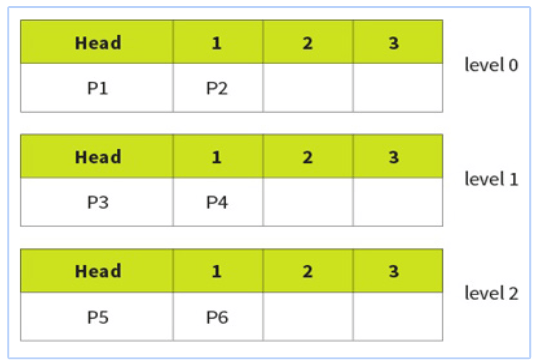
- New processes are always added at the tail of level 0.
- If a process gives up the CPU of its own accord, it will be added back into the same-level queue.
- If a process is pre-empted (stopped by the scheduler), it will be demoted to a lower queue.
- If a process blocks for I/O, it will be promoted one level.
BIOS – The BIOS is not part of the operating system as it has to work before the operating system is even loaded. It is normally stored on a BIOS chip on the motherboard. This chip contains non-volatile memory: either ROM in older systems, or Flash memory in newer ones.
The BIOS contains the most basic hardware settings of the computer and a set of instructions to begin the boot up process. Within the BIOS, there are settings for the hardware. Such as hard disk details, memory capacity, memory timing information, optical drive details.
The boot order can also be set that tells the BIOS which drive to look to, for the operating system. For example it could be told to first look in the optical drive, then an USB port then the primary hard disk.
Booting – Booting is the process of starting the computer. The main sequence of start-up events are to check the basic hardware, load low-level drivers and then initialise the loading of the operating system into memory. This whole process is started by the boot file which is located in the BIOS.
When a computer is first switched on, the main memory (RAM) is empty and the CPU has no instructions to follow.
Booting has to happen in small steps because at the point of switch-on the machine is effectively dumb. It does not know about any hard disks it may contain, or any peripherals such as the screen, keyboard, mouse – absolutely nothing.
But there is an established way of booting up a computer and the piece of software involved with this is called the BIOS (Basic Input Output System) and is stored in the ROM.
On startup the first thing to happen is the power supply turns on and when it is producing a steady output will send a hardware reset signal to the CPU along the control bus. This reset command that points it to the starting address of the BIOS start-up program.
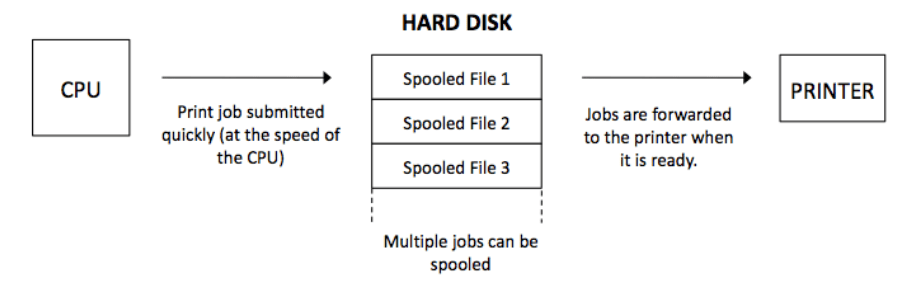
Spooling – Spooling is the process of sending output (intended for a printer or other peripheral) to a disk file, temporarily, so that it can be forwarded to the printer (or other peripheral) when it free.
Drivers – A device driver enables the operating system to control and communicate with the device. The exact detail of which device driver is needed by the operating system is kept in a file – in Windows, the file is called the ‘registry’ and in Linux the details will be stored as a number of ‘configuration files’.
Virtual Machines – a Virtual machine is an operating system being run within a program on an operating system. This has the advantages of being able to run programs otherwise not run able on the given operating system through a VM. It also means that you can run programs without the worry that they will effect the main PC. Programs however will run slower and you will need proper licences to run the OS within the VM.

